



Construisez une Enceinte Intelligente Style Amazon Echo avec Arduino et 1Sheeld
Composants et fournitures
| Composant | Quantité |
|---|---|
| Arduino 101 | 1 |
| 1Sheeld (carte + application smartphone) | 1 |
| Lampe baton (stick lamp) | 1 |
| Bande LED RGB | 1 |
| Carte relais | 1 |
| Apple iPhone (smartphone requis pour 1Sheeld) | 1 |
| Plaque d'essai (breadboard) | 1 |
| Câble USB-A vers B | 1 |
| Fils de câblage (génériques) | 30 |
| Transistor NPN usage général | 3 |
Outils et machines nécessaires
- Perceuse
- Tube PVC
Applications et services en ligne
- Arduino IDE
À propos du projet
Il y a quelques mois, j'ai rendu visite à un ami et j'ai été émerveillé par son Amazon Echo. Il peut jouer de la musique, contrôler les lumières de la maison, donner les nouvelles et la météo, et même l'heure et la date, le tout par simples commandes vocales.
À ce moment-là, le maker en moi s'est écrié : "Pourquoi ne pas le faire moi-même !".
Depuis ce jour, j'ai cherché des composants pour réaliser un Amazon Echo basé sur Arduino, jusqu'à découvrir l'incroyable 1Sheeld.
1Sheeld est une plateforme pour Arduino qui permet d'exploiter les capteurs et capacités de votre smartphone et de les utiliser dans vos projets Arduino. C'est un shield matériel qui se place au-dessus de votre carte Arduino et communique par Bluetooth avec une application Android pour transférer les données entre les deux.
Consultez le tutoriel de démarrage sur le site 1Sheeld qui vous guide pas à pas jusqu'à une utilisation fluide, et qui est une excellente référence pour de super projets Arduino.
J'ai utilisé dans ce projet cinq shields parmi les 40+ disponibles dans 1Sheeld :

1. Shield Reconnaissance Vocale (Voice Recognition Shield)
Utilisé pour contrôler tout le système par commandes vocales. Très simple à activer : VoiceRecognition.start();

2. Shield Lecteur Musical (Music Player Shield)
Permet d'accéder au lecteur musical du smartphone et de choisir les pistes à jouer très facilement : MusicPlayer.play();

3. Shield Synthèse Vocale (Text to Speech Shield)
Ajoute une interaction humanoïde : le système répond à ce que vous dites. Simple à rendre réactif : TextToSpeech.say("time in cairo is");

4. Shield Horloge (Clock Shield)
Renvoie l'heure en temps réel pour que le système puisse répondre quand on lui demande l'heure. Récupération facile : Clock.queryDateAndTime();

5. Shield Internet (Internet Shield)
À mon avis, le shield le plus puissant de 1Sheeld. Utilisé pour récupérer la météo actuelle via une API de openweathermap : HttpRequest request1("/*adresse API */");

Étape 1 : Rassembler les composants
- Arduino 101 : 30,99 $
- Carte 1Sheeld+ : 54,94 $
- iPhone : 155,50 $
- Tube PVC : 2 $
- Bande LED : 5 $
- Alimentation 12 V : 7 $
- Carte relais : 3 $
- Fils et jumpers : 3 $
- 3 transistors NPN : 1 $
Étape 2 :
Percez des trous dans le tube PVC pour laisser sortir le son.
Étape 3 :
Peignez le tube PVC avec de la peinture noire en bombe.
Étape 4 : Câblage
- Connectez les bandes LED aux transistors et à l'alimentation
- Connectez la lampe à la carte relais et aux bornes secteur
- Connectez la carte relais et les bandes LED à l'Arduino 101 comme indiqué dans le code
- Montez le tout avec l'iPhone à l'intérieur du tube PVC
Étape 5 : Installation de la bibliothèque 1Sheeld
Gérez les bibliothèques depuis l'IDE Arduino : Sketch >> Include library >> Manage libraries >> tapez OneSheeld >> Install. Ou téléchargez depuis 1sheeld.com/downloads/, puis Sketch >> Include library >> Add .ZIP library.
Étape 6 : Installation de l'application 1Sheeld
Téléchargez l'application mobile 1Sheeld depuis le site, l'App Store (iOS) ou le Play Store (Android).
Étape 7 : Accéder aux shields
Suivez le tutoriel de démarrage 1Sheeld et à la fin, choisissez les shields suivants :
- Voice Recognition
- Text to Speech
- Clock
- Internet
- Music Player
Puis appuyez sur le bouton Multiple Shield.
Code
- Amazon echo code
Amazon echo code Arduino
/* OPTIONAL: To reduce the library compiled size and limit its memory usage,
   you can specify which shields you want to include in your sketch by
   defining CUSTOM_SETTINGS and the shields respective INCLUDE_ define. */
#define CUSTOM_SETTINGS
#define INCLUDE_INTERNET_SHIELD
#define INCLUDE_VOICE_RECOGNIZER_SHIELD
#define INCLUDE_TEXT_TO_SPEECH_SHIELD
#define INCLUDE_MUSIC_PLAYER_SHIELD
#define INCLUDE_CLOCK_SHIELD

/* Include 1Sheeld library. */
#include <OneSheeld.h>

/* create an initial value for the millis counter. */
unsigned long previousMillis = 0;
/* create an intial state for calling alexa. */
bool state = 0;

/* Call an api that will return the weather status in cairo,egypt. */
HttpRequest request1("https://api.openweathermap.org/data/2.5/weather?q=Cairo,EG&appid=43d95b4cf5d0573e2dfe5186c160017a");

/* define the 3 transistors on pins 3,5 and 6. */
#define strip1 3
#define strip2 6
#define strip3 5

/* define the lamp on pin 13. */
int lamp = 13;

/* define the variable that will hold the hours and minutes. */
int hour, minute;

/* Create 2 character arrays to catch the string you want from the sentence. */
char b[4];
char c[4];

/* define variables to hold the hour and minutes in string. */
String strh, strm;
/* define variable to hold the day status am or pm. */
String noon;

/* Voice commands set by the user. */
const char mainCommand[] = "alexa";
const char weatherCommand[] = "how is the weather today";
const char playCommand[] = "play music";
const char clockCommand[] = "what time is it";
const char stopCommand[] = "stop";
const char lightonCommand[] = "turn on the lights";
const char lightoffCommand[] = "turn off the lights";

void setup() {
  /* Start Communication. */
  OneSheeld.begin();
  /* set the led strips and the lamp to output. */
  pinMode(strip1, OUTPUT);
  pinMode(strip2, OUTPUT);
  pinMode(strip3, OUTPUT);
  pinMode(lamp, OUTPUT);
  /* Subscribe to success callback for the request. */
  request1.setOnSuccess(&onSuccess1);
  /* Subscribe to json value replies. */
  request1.getResponse().setOnJsonResponse(&onJsonReply1);
  /* on a voice recognized call the function "myFunction". */
  VoiceRecognition.setOnNewCommand(&myFunction);
}

void loop() {
  /* make a delay for 5 seconds using millis counter to keep the voice detection alive. */
  unsigned long currentMillis = millis();
  if (currentMillis - previousMillis >= 5000) {
    previousMillis = currentMillis;
    /* get the current time in your phone. */
    Clock.queryDateAndTime();
    /* start voice recognition. */
    VoiceRecognition.start();
  }
  /* save the smartphone hour and minutes in variables. */
  hour = Clock.getHours();
  minute = Clock.getMinutes();
  /* detect the time status if it am or pm. */
  if (hour > 12) {
    hour -= 12;
    noon = "P M";
  } else {
    noon = "A M";
  }
  /* save the hour and minutes as string. */
  strh = String(hour);
  strm = String(minute);
  /* save the string in a character array. */
  strh.toCharArray(b, 4);
  strm.toCharArray(c, 4);
}

/* This function will be invoked each time a new command is given. */
void myFunction(char *commandSpoken) {
  /* check if any one call alexa or not. */
  if (!strcmp(mainCommand, VoiceRecognition.getLastCommand())) {
    alexon();
    MusicPlayer.setVolume(5);
    /* if yes make the state =1. */
    state = 1;
  }
  /* check if you asked to play music after calling alexa. */
  if (!strcmp(playCommand, VoiceRecognition.getLastCommand()) && state == 1) {
    alexoff();
    MusicPlayer.play();
    delay(10000);
    MusicPlayer.stop();
    state = 0;
  }
  /* check if you asked to get the weather status after calling alexa. */
  else if (!strcmp(weatherCommand, VoiceRecognition.getLastCommand()) && state == 1) {
    alexoff();
    Internet.performGet(request1);
    /* Wait for 5 seconds. */
    OneSheeld.delay(5000);
    state = 0;
  }
  /* check if you asked for the time after calling alexa. */
  if (!strcmp(clockCommand, VoiceRecognition.getLastCommand()) && state == 1) {
    alexoff();
    /* 1Sheeld responds using text-to-speech. */
    TextToSpeech.say("time in cairo is");
    delay(1300);
    TextToSpeech.say(b);
    delay(600);
    TextToSpeech.say(c);
    delay(800);
    TextToSpeech.say(noon);
    delay(500);
    state = 0;
  }
  /* check if you asked to turn the lamp on after calling alexa. */
  if (!strcmp(lightonCommand, VoiceRecognition.getLastCommand()) && state == 1) {
    alexoff();
    digitalWrite(lamp, HIGH);
    TextToSpeech.say("the lights turned on");
    delay(6000);
    state = 0;
  }
  /* check if you asked to turn the lamp off after calling alexa. */
  else if (!strcmp(lightoffCommand, VoiceRecognition.getLastCommand()) && state == 1) {
    alexoff();
    digitalWrite(lamp, LOW);
    TextToSpeech.say("the lights turned off");
    delay(3000);
    state = 0;
  }
}

void onSuccess1(HttpResponse & response1) {
  /* Using the response to query the Json chain till the required value. */
  response1["weather"][0]["main"].query();
  delay(200);
}

void onJsonReply1(JsonKeyChain & hell, char *output) {
  if (hell == request1.getResponse()["weather"][0]["main"]) {
    TextToSpeech.say("the weather today in cairo is");
    delay(2000);
    /* 1Sheeld responds using text-to-speech shield. */
    TextToSpeech.say(output);
  }
}

void alexon() {
  /* Turn on the strips in order like the same order of amazon echo. */
  digitalWrite(strip1, HIGH);
  delay(200);
  digitalWrite(strip2, HIGH);
  delay(200);
  digitalWrite(strip3, HIGH);
}

void alexoff() {
  /* Turn off the strips. */
  digitalWrite(strip1, LOW);
  digitalWrite(strip2, LOW);
  digitalWrite(strip3, LOW);
}
Schémas
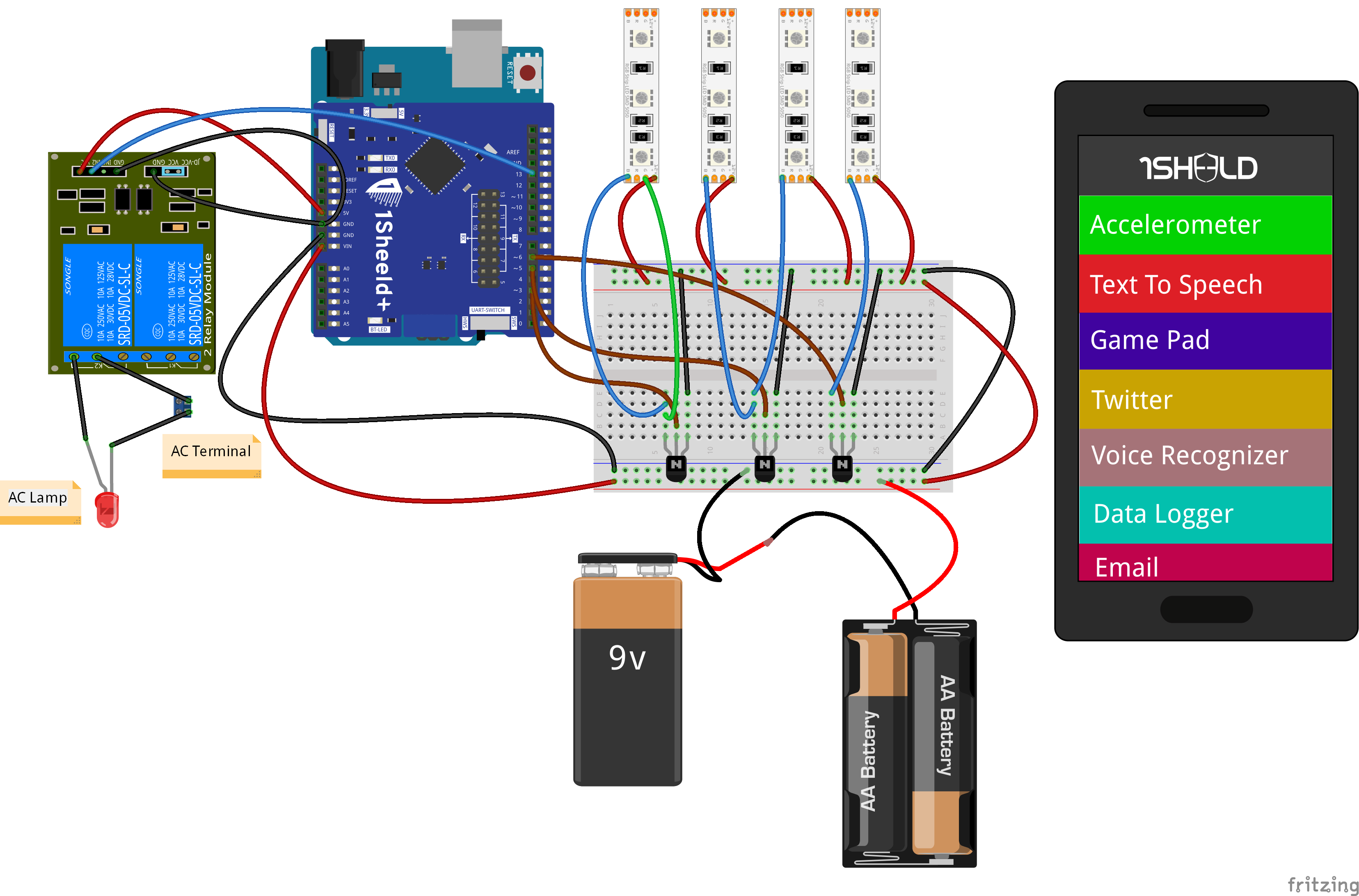
Processus de fabrication
- Transfert de données température/humidité entre deux Arduinos via Firebase
- Dé numérique Arduino sur écran LCD 16x2 – Générateur aléatoire à bouton poussoir
- Construire une télécommande Android universelle avec Arduino, 1Sheeld et contrôle IR
- Manette de jeu USB Arduino DIY – Construisez votre propre gamepad haute performance
- Mesure de distance en temps réel par sonar Arduino et visualisation Processing
- Pixel Chaser : Jeu LED interactif à une touche avec Arduino Nano
- Contrôle fluide de la luminosité LED avec Bolt IoT et Arduino UNO
- Construisez un Bras Robotique Intelligent Contrôlé par Arduino : Tutoriel DIY Facile
- Char autonome « WalaBeer » : Walabot, Arduino, Raspberry Pi & Alexa